AR Art Draw: Trace & Paint
Appollo StudioArt & Design
4.444.00 Reviews
- Version
- 2.1.1
- Installs
- 1.00M
- Age Rating
- Everyone
Screenshots
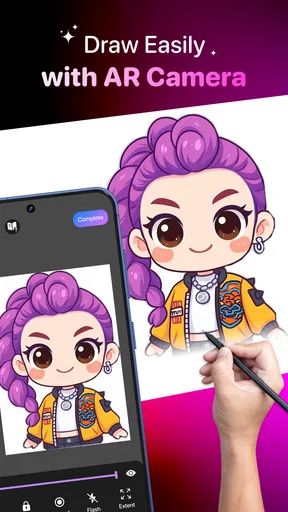

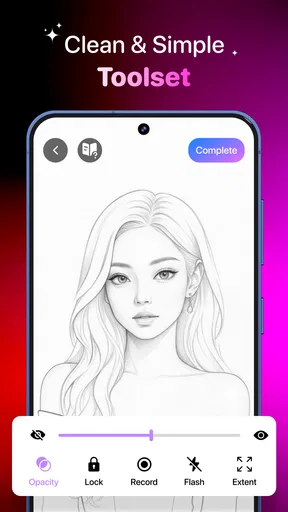
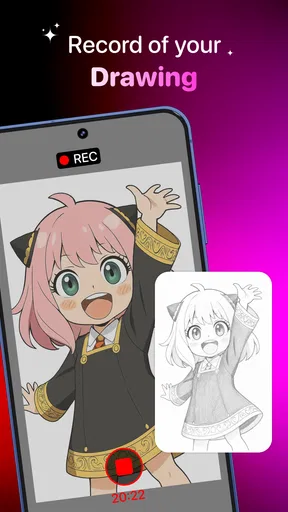
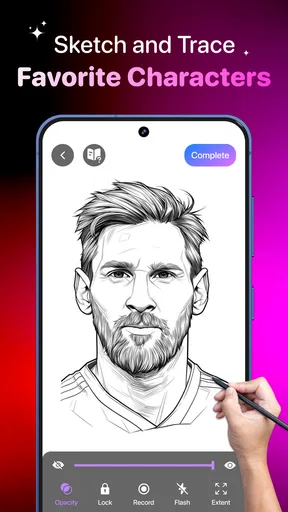
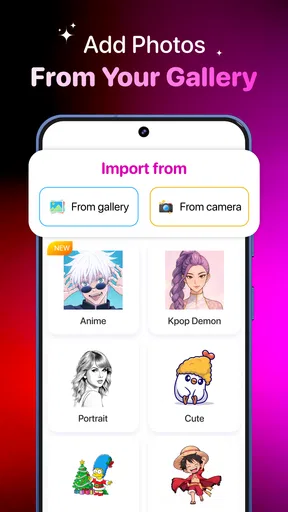
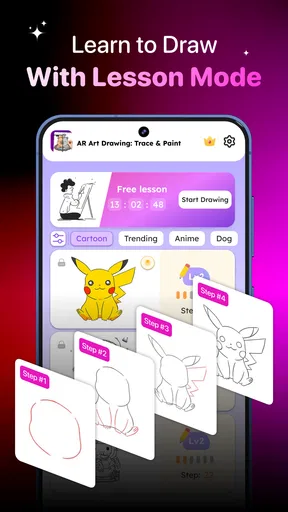
Our Review of AR Art Draw: Trace & Paint
 Analysis by Appyee
I found AR Art Draw: Trace & Paint most interesting when I stopped treating it like a conventional drawing app. It is built around placing a digital guide into the real world, then using that guide as a starting point for sketching and painting. That changes the basic question from “Can I draw this from memory?” to “Can I use this reference to understand shape, proportion, and placement?” For beginners, that is a much friendlier way into art.
My first impression was that the app is aimed at people who want a practical bridge between looking and making. You are not simply filling a blank digital canvas with brushes. The appeal is the AR layer: a reference appears through the phone’s camera view, and you work from it on paper or in your surroundings. That makes the experience feel more physical than a standard Art & Design app, even though the phone remains central to the process.
Appollo Studio has kept the idea easy to understand. The app is free to install, carries an Everyone age rating, and runs on Android devices using version 7.0 or later. Optional in-app purchases range from $4.99 to $9.99 per item, so I would approach it as a free starting point with possible paid extras rather than assuming every part of the experience is included.
How the AR approach changes learning to draw
The strongest part of the concept is its use of visual guidance. When I draw without help, I often begin with a vague outline, lose the proportions, and then spend the rest of the sketch correcting mistakes. An AR reference can reduce that early uncertainty. It gives the eye something stable to compare against, which is especially useful for simple subjects, lettering practice, decorative designs, and first attempts at painting.
This does not make the drawing automatic. The phone can show a guide, but I still have to control the pencil, decide how much detail to include, and judge whether the result looks balanced. That distinction matters. The app is better understood as a tracing and observation aid than as a replacement for learning line control. Used thoughtfully, it can help a beginner see where a curve starts, how wide a form should be, and which details can be simplified.
I also liked the psychological benefit. A blank sheet can make new artists hesitate, while a visible reference gives them an immediate task. Instead of wondering what to draw, I can focus on following an edge or blocking in a broad shape. That makes a short practice session feel achievable, particularly when I only have a few minutes and do not want to plan a full illustration.
There is a trade-off, though. Tracing can produce a pleasing result before the user fully understands why the lines work. If I copied every outline without looking closely at the subject, I might finish the picture but learn less from it. My preferred method is to use the AR guide for the first structure, then turn my attention to proportions, shadows, and independent details. That keeps the tool useful without making it a crutch.
What happens when the connection matters
Connectivity shapes this app in a less obvious way than it does a social or streaming product. The drawing itself is a physical activity, but the surrounding experience may still depend on the phone being able to load or refresh material, complete account-related actions, or handle optional content. I would therefore prepare the app before leaving home rather than assuming every part of the workflow will behave identically in a weak-signal location.
This matters in ordinary situations. Imagine sitting in a café, setting the phone above a sketchbook, and trying to begin a quick study. If the relevant reference is already available, the session can feel focused and pleasantly quiet. If the app needs to retrieve something at that moment, a slow connection can interrupt the creative rhythm. Drawing is a concentration-heavy activity, so even a small pause feels more disruptive than it would in a casual browsing app.
The same applies in a classroom, on public transport, or outdoors. AR work already asks the phone to maintain a stable view of the surface. Adding an unreliable network to that setup can make the process feel less predictable. I would open the app and test the intended reference before starting a serious drawing session, especially if I was working somewhere with inconsistent mobile coverage.
I am careful not to promise a fully offline workflow here. The practical lesson is simply to separate what you need before beginning from what might require a connection during use. If you are planning a long session away from reliable internet, spend a moment preparing the app while connected and keep expectations realistic.
Using it in real mobile settings
The phone’s position has a bigger effect on the experience than I expected. For a comfortable tracing session, the device needs to stay at a useful angle while leaving enough room for the hand to draw. A loose phone on a table can shift when the user reaches across the page, changing the relationship between the reference and the paper. I found that a stable stand or a carefully arranged support makes a noticeable difference, even though that accessory is not part of the app itself.
Lighting also deserves attention. In a dim room, the camera view may be harder to read and the paper can become visually flat. In bright outdoor light, reflections on the screen can make the guide difficult to follow. A shaded, evenly lit surface is usually a better compromise than direct sunlight. This is one of those practical details a short store description cannot explain, but it can determine whether the AR idea feels helpful or frustrating.
Screen size changes the balance too. A larger phone gives the reference more breathing room, while a smaller display is easier to position but can make fine details feel cramped. I would use a tablet-sized screen if the app supports the device and the drawing setup allows it, but I would not buy new hardware solely for this purpose. The technique remains useful on a normal phone when the subject is simple and the page is not oversized.
For a quick everyday scenario, I can see using it at a kitchen table with a small sketchbook. I would choose a straightforward image, place the phone securely, trace the main shapes with a light pencil, and then put the phone aside for the finishing work. That workflow avoids staring at the screen for every tiny mark and turns the app into a starting guide rather than the entire art process.
It is less suitable for drawing while walking, standing in a crowded place, or working where the phone must be held continuously. The combination of camera framing, paper placement, and hand movement needs stability. This is a seated creative tool first, not an app designed for spontaneous movement.
Recovering when an AR session goes wrong
AR can lose its usefulness when the physical setup changes. If I move the paper, tilt the phone, or accidentally bump the support, the guide may no longer line up with the drawing. My best recovery habit is to pause before adding more detail. I check the page position, restore the phone to its earlier angle, and compare a few major landmarks rather than trying to correct every line immediately.
Starting with light construction marks is another important safeguard. Dark, confident lines are difficult to undo when the guide shifts. A faint outline lets me reassess the placement and either continue or restart without wasting the whole page. This is a small technique, but it makes the app far more forgiving for beginners.
Connection problems call for a similarly calm approach. If something takes longer to load, I would avoid repeatedly tapping the same control or changing several settings at once. First I would check whether the phone still has a usable connection, then return to the app and retry the single action. If the reference is already visible, I would continue the physical sketch rather than interrupting the session unnecessarily.
The app is also easier to recover from when the user separates the drawing into stages. I like to treat the first pass as placement, the second as structure, and the final pass as personal interpretation. If the AR alignment becomes unreliable after the first pass, the drawing is not automatically lost; I can continue from the marks already made. That staged workflow is more resilient than trying to complete a polished illustration while constantly depending on the live overlay.
One limitation is that AR guidance can encourage false confidence. A line may look correct while it is overlaid, then seem less convincing once the phone moves away. I recommend checking the drawing without the screen at regular intervals. That reveals whether the proportions work on their own and helps build the visual judgement the app cannot provide for you.
Keeping the experience considerate of data
Because this is a camera-based art tool, I would use it with the same basic care I apply to any app that looks through the phone’s surroundings. A clean tabletop is a sensible working area, and there is no reason to point the camera at private documents, other people, or identifying material while setting up a drawing. This is not a criticism of the app; it is simply good mobile practice when the camera is part of the creative workflow.
Data-conscious use also means thinking about when to connect. If I am on a limited mobile plan, I would prepare references and updates over a trusted Wi-Fi connection where possible, then avoid unnecessary browsing or repeated reloads during the actual drawing session. I would not leave the app open and active when I am finished. Closing it helps conserve battery and prevents an accidental camera session while the phone is not being used for art.
Battery awareness is especially relevant because AR combines the camera, display, and real-time positioning. A long session can be more demanding than ordinary note-taking or a simple sketching app. I would begin with a reasonably charged phone, lower screen brightness when the room allows it, and keep the session focused instead of leaving the camera view running between attempts.
There is another form of data efficiency that has nothing to do with internet usage: reduce visual clutter. Choosing one clear reference and working with broad shapes first means less time spent switching around while the camera is active. It also improves the drawing. The more elements competing for attention, the harder it is to tell whether the essential proportions are right.
Who will get the most from it
I would recommend this app to a beginner who wants a gentle way to start drawing, a parent looking for a creative activity suitable for general audiences, or an experienced hobbyist who enjoys using references to make quick physical sketches. Its Everyone rating makes it approachable for a broad audience, while the AR format gives it a more hands-on character than a conventional collection of digital brushes.
It can also help someone who struggles with scale. For example, a user decorating a card, poster, or notebook may want to place a design consistently instead of relying entirely on freehand estimation. The guide can support that first layout, after which the user can add their own colors and changes. I find that more valuable than simply copying a finished picture because it leaves room for interpretation.
I would be more cautious about recommending it to a professional illustrator who needs precise layer management, advanced brush controls, color correction, or a fully independent digital workflow. A dedicated drawing app is usually better for those jobs. The AR approach prioritizes accessibility and physical tracing, not the deep editing tools expected from a professional studio setup.
It is also not the right choice for someone who wants to learn entirely without references. Traditional exercises involving observation, gesture, perspective, and memory will serve that person better. This app can support those skills, but it should not be mistaken for a complete art curriculum.
How it compares with ordinary drawing alternatives
Compared with a standard sketching app, this one offers a more direct connection to paper and physical hand movement. A normal digital canvas is cleaner, easier to undo, and usually more flexible for editing. It is the better option when I want to experiment with layers, revise a composition repeatedly, or produce a finished digital file.
Compared with a printed reference, the AR method can feel more interactive because the guide is positioned through the phone rather than fixed on a separate sheet. The downside is that the phone becomes part of the physical setup and may need careful alignment. A printed image is simpler, consumes no battery, and never loses camera framing, but it does not offer the same sense of guided placement.
Compared with a tutorial video, AR Art Draw: Trace & Paint is more practice-oriented. A video can explain technique and show a complete process, while this app encourages the user to make marks immediately. I would choose the app for short, hands-on exercises and a video or structured course when I need deeper instruction about anatomy, perspective, or painting theory.
The free entry point is helpful for testing whether this style suits you. Still, I would inspect any optional purchase carefully before paying, particularly if my main goal is only occasional tracing. The app’s average rating is 4.4 from around 12 thousand ratings, and it has passed the million-install mark, which suggests broad interest, but popularity does not remove the need to check whether the workflow matches your own expectations.
Version, audience, and long-term usefulness
I tested the idea with a beginner’s mindset, and that is where it makes the most sense. The current version is 2.1.1, and the app was released on December 11, 2025. Those details matter if you are comparing it with older drawing tools: this is a relatively recent option, so I would keep the app updated and pay attention to how its AR behavior fits your particular phone.
Device compatibility is straightforward at the operating-system level, with Android 7.0 or later listed as the minimum. That does not guarantee identical AR quality on every device, because camera quality, motion sensors, screen size, and physical stability can all affect the practical result. Before committing to a large project, I would run a short test on the actual phone I plan to use.
For long-term value, the app works best when I vary the way I use it. One day I might trace a simple object, another day I might use the guide only for the first outline, and later I might compare the finished drawing with the reference after removing the phone. That progression prevents the experience from becoming repetitive and gradually shifts more responsibility back to the artist.
I would also keep expectations sensible about finished quality. The app can make starting easier, but paper choice, pencil pressure, color selection, and patience still determine much of the final result. If the user expects one tap to produce professional artwork, disappointment is likely. If the goal is to make practice less intimidating and turn a blank page into a workable composition, the concept is much more convincing.
My connectivity verdict
My overall view is positive, with one clear condition: plan the session before you depend on it. The creative act is pleasantly physical, but the phone, camera, positioning, battery, and possible network interruptions all sit between the idea and the finished sketch. A stable setup and a little preparation make the experience feel purposeful; a rushed session in a weak-signal environment can make the same concept feel fragile.
The smartest way to use it is as a temporary guide, not a permanent substitute for observation. Start with the AR reference, establish the proportions, then look away from the screen and make decisions yourself. That approach gives beginners support while still leaving room to develop genuine drawing confidence.
I would choose it over a conventional drawing app when I want to work on paper, need help getting started, or want a quick creative activity that connects the digital and physical worlds. I would choose a traditional digital canvas when editing, layers, precision, or uninterrupted offline-style work are more important than guided placement.
As a free Art & Design app from Appollo Studio, it has an inviting purpose and a useful niche. The possible paid items mean I would explore the free experience first, and the AR setup means I would not treat it as a grab-and-go tool for every location. Even with those caveats, I think it is worth trying for beginners and casual artists who want a more approachable first step. Used deliberately, it turns the intimidating blank page into a manageable exercise without pretending that the phone can do the creative thinking for you.
Verdict
Strengths of AR Art Draw: Trace & Paint
- Augmented reality makes proportions easier to follow while sketching.
- Includes a variety of traceable templates for different skill levels.
- Useful for practicing outlines, shapes, and basic drawing techniques.
- The camera-based setup makes traditional drawing feel more interactive.
- Can help beginners gain confidence before drawing without guides.
Limitations of AR Art Draw: Trace & Paint
- Requires steady camera positioning for accurate tracing.
- Lighting and surface quality can affect the overlay’s visibility.
- Some templates or tools may be restricted behind in-app purchases.
- Extended camera use can drain the device battery quickly.
- The AR guide does not teach shading, anatomy, or advanced techniques.
Similar Picks in This Category
View All
Canva: AI Photo & Video Editor
Canva4.8

PENUP – Drawing-sharing SNS
Samsung Electronics Co., Ltd.4.5

Crafto
Kutumb App4.6

Sketchbook
Sketchbook4.1

ibis Paint X
ibis inc.4.5

Adobe Express: AI Photo, Video
Adobe4.6
Frequently Asked Questions
What is AR Art Draw: Trace & Paint, and how does it work?
AR Art Draw: Trace & Paint is a drawing app that uses augmented reality to help you trace images onto paper. After selecting or importing a reference, the app displays the artwork through your phone’s camera so it appears aligned with the drawing surface. You can follow the projected lines while looking at the screen, making it useful for beginners practicing proportions, outlines, and basic sketching.
Do I need any special equipment to use AR Art Draw: Trace & Paint?
You generally do not need a printer, drawing tablet, or other specialized equipment to get started. A compatible Android or iOS device, a stable surface, paper, and a pencil are usually enough. For better results, a phone stand or adjustable holder is strongly recommended because keeping the camera steady makes the virtual reference remain aligned while you draw.
Can I use my own images in AR Art Draw: Trace & Paint?
The app is designed around choosing a reference image and tracing it through the camera view, and supported versions may allow users to select images from their device or use available artwork within the app. Image-import options can vary by platform and version, so it is worth checking the current app listing and permissions. Clear, high-contrast images usually produce the easiest outlines to follow.
Is AR Art Draw: Trace & Paint suitable for complete beginners?
Yes, the app is mainly aimed at people who want guidance while learning to draw, including complete beginners. It can make it easier to understand shape placement, proportions, and basic contours than working from a blank page. However, it does not draw the picture for you or replace practice. Users still need patience, hand control, and time to refine details after tracing.
Is AR Art Draw: Trace & Paint free, and does it require in-app purchases?
The availability of free tools, advertisements, subscriptions, or one-time purchases may depend on the version and platform you download. Some features or image collections can be restricted until an upgrade is made. Before installing, review the Google Play or App Store listing for the current pricing and subscription terms. Also check whether the app requests camera, photo-library, or other permissions.
